How SBOM Total works
SBOM Total takes a Software Bill of Materials (the inventory of every component your software is built from) and runs it through 17 analyses at once: it normalizes the inventory, scores SBOM quality, correlates known vulnerabilities, flags exploited ones, and ranks what actually matters. This guide walks the whole flow with screenshots, then explains every result, how to fix it, and what the report looks like afterwards.
No SBOM yet? Open the checker and click Use demo SBOM to follow along. Every screenshot below is a real scan of that built-in demo. To make one from your own project, see how to generate an SBOM (Syft, Trivy, cdxgen) or the Yocto and Zephyr build tutorials. New to the terms used below? See the glossary.
The scan in four steps
Step 1
Choose your input
Drop in an SBOM file, paste its text, or click Use demo SBOM. SBOM Total accepts CycloneDX (JSON or XML), SPDX (JSON or tag-value), Syft JSON, and common SBOM JSON shapes, up to 80 MB (200 MB when signed in). No sign-up is needed to scan.
Privacy: when the backend is connected the file is scanned on our server and (only if you are signed in) saved to your private history; anonymous scans are unlisted. With no backend it is parsed entirely in your browser and never uploaded.
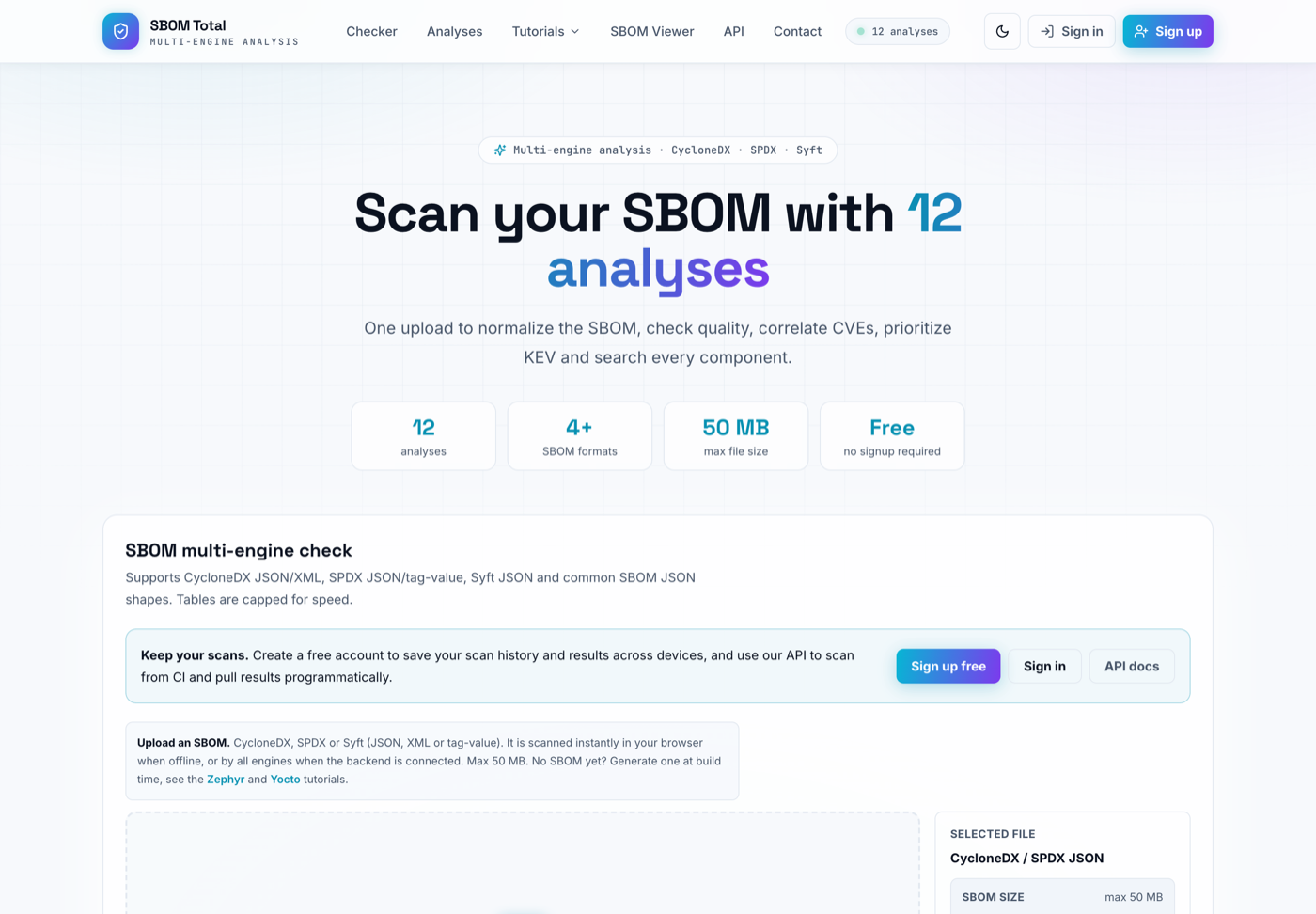
The checker: drop a file, paste, or load the demo SBOM. Step 2
Run the multi-engine scan
Press Run scan. Instead of one tool, SBOM Total runs a whole panel in parallel and the rows fill in live as each engine finishes: Syft normalizes the inventory, sbomqs scores quality, Grype, OSV-Scanner, Trivy and cve-bin-tool find vulnerabilities, OSV.dev enriches advisories, ntia-conformance-checker checks the minimum elements, and CISA KEV plus EPSS add exploitation priority.
Each engine reports a status (clean, warning, danger or info), how many things it detected, and a one-line summary. Click any engine row for what it does and what it found.
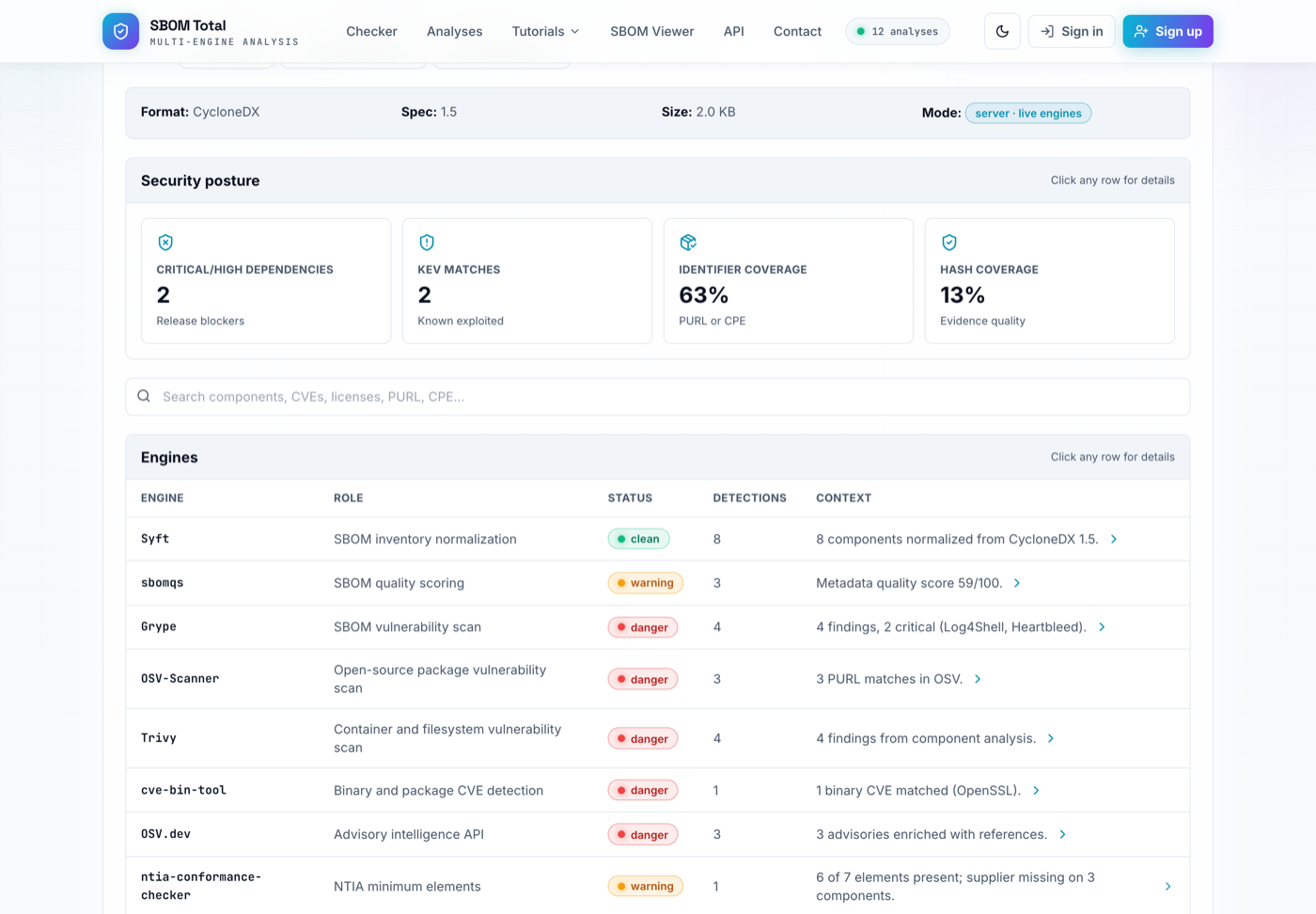
One scan, many engines: every result is correlated into a single report. Step 3
Read the verdict and score
The header is the at-a-glance answer: a verdict (clean, review or risk), a 0-100 quality score, the component count, the number of findings, and the SBOM size and format. Everything below the header is the detail that backs up that verdict.
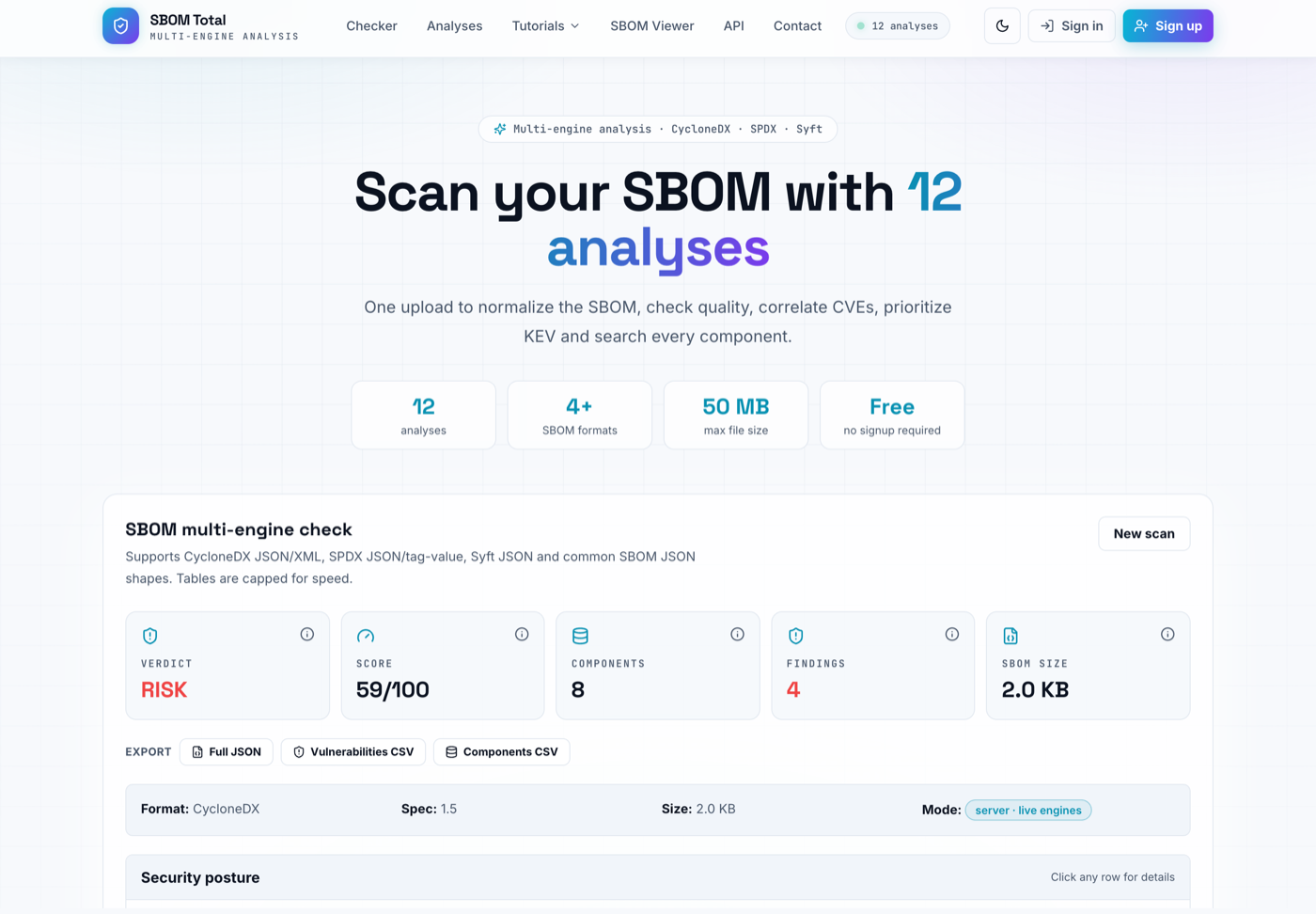
This demo lands on RISK: it contains known-exploited (KEV) vulnerabilities. Step 4
Fix, then re-scan
Work the report top-down (the next section explains every part), make the fixes in your build or SBOM, and scan again. The loop is short: upgrade or record a decision, regenerate the SBOM, re-scan, and watch the score climb and the verdict move toward clean. Signed-in users get a permalink per SBOM and a Rescan button that keeps the history.
Understanding your results
Every block in the report answers a different question. Here is what each one means, how to fix it, and what it looks like once you do. The examples and screenshots are from the demo SBOM.
The verdict and the score
Verdict: clean / review / risk
- What it means
- The one-line judgment. Risk means at least one critical or CISA KEV vulnerability was found, do not ship as-is. Review means quality gaps or findings that need a human decision. Clean means nothing is blocking.
- How to fix it
- Resolve the risk drivers first (KEV and critical CVEs), then clear the review items (missing data, undecided findings).
- Result after the fix
- Once no critical or KEV findings remain and the gaps are closed, the verdict turns clean.
Quality score and coverage
- What it means
- A weighted percentage of components that carry the fields engines rely on: version, license, supplier, PURL or CPE, CPE, and hash. The coverage bars show each field on its own.
- How to fix it
- Regenerate the SBOM from your build so every component has a version and a PURL, and add CPEs and hashes where you can.
- Result after the fix
- The coverage bars fill in, the score rises (aim for 85+), and CVE matching produces fewer false positives and misses.
Maturity and licenses
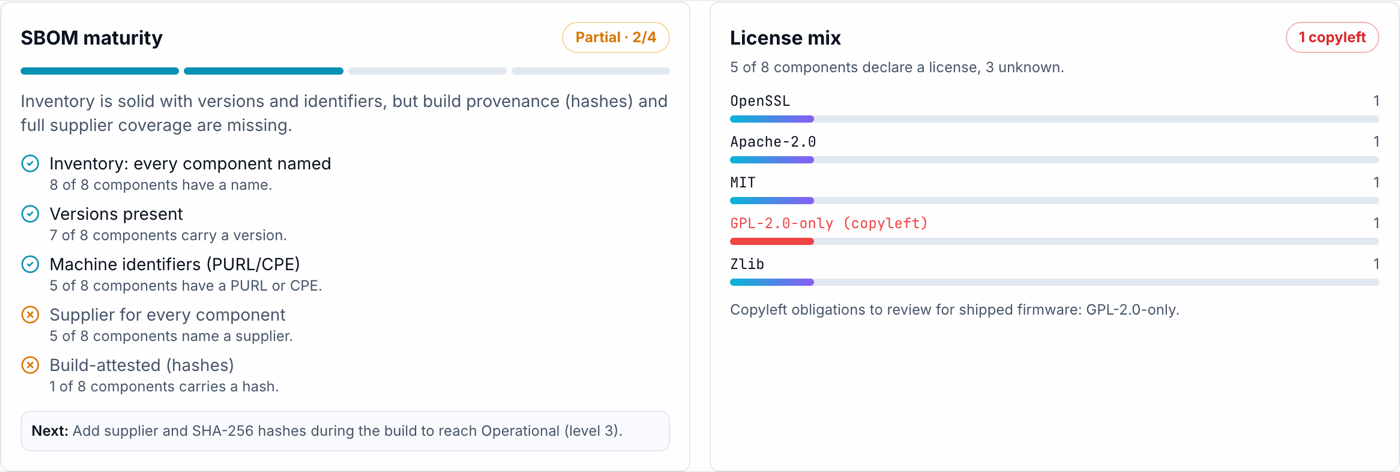
SBOM maturity (1 to 4)
- What it means
- A four-level model: 1 Inventory (components named), 2 Partial (versions and identifiers), 3 Operational (suppliers and machine-readable identifiers everywhere), and 4 Build-attested (hashes and provenance from the build).
- How to fix it
- Follow the Next line on the card. It is usually: add suppliers, then add SHA-256 hashes during the build.
- Result after the fix
- The level bar advances. Build-attested is the evidence regulated and CRA-facing supply chains expect.
License mix and copyleft
- What it means
- The spread of declared licenses, with copyleft licenses (GPL, LGPL, AGPL, MPL and similar) flagged in red because shipping firmware that contains them carries distribution obligations.
- How to fix it
- Add a declared or concluded license to every unknown component, and review each copyleft component with legal for source-offer and notice obligations.
- Result after the fix
- The unknown count drops to zero and you hold a defensible license inventory for the product.
Vulnerabilities, exploitation priority and triage
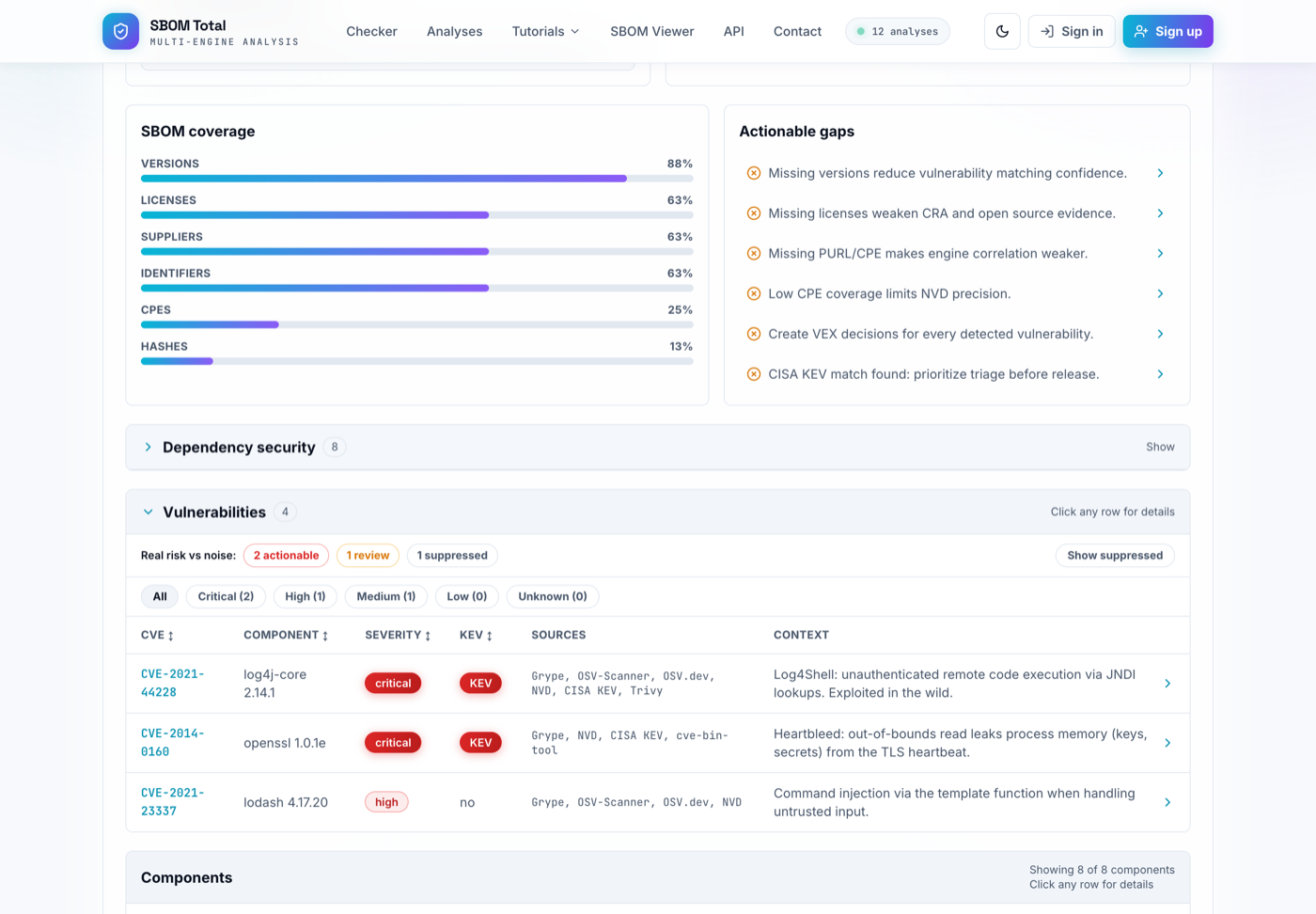
Vulnerabilities
- What it means
- CVEs correlated to your components by several engines. Severity is the impact; the sources column shows which engines and feeds agreed (more sources means higher confidence). Click a row for the advisory links and a VEX editor.
- How to fix it
- Upgrade to the listed fixed version, or record a VEX decision if the product is not actually affected.
- Result after the fix
- Patched components drop off the list; the ones that stay carry a documented VEX status.
KEV and EPSS
- What it means
- KEV means CISA has confirmed the CVE is exploited in the wild, treat it as top priority. EPSS is the probability (0-100%) it will be exploited in the next 30 days. Together they order the work.
- How to fix it
- Patch every KEV item before release. For the rest, prioritize high EPSS combined with high severity.
- Result after the fix
- No KEV matches remain, which is what lets the verdict move off risk.
Triage: actionable / review / noise
- What it means
- Embedded-aware filtering. Actionable is real, reachable risk; review needs a human call; noise is suppressed with a stated reason (for example, an applet that is not compiled into this image).
- How to fix it
- Work the actionable bucket first, decide the review items, and use Show suppressed to confirm the noise reasons are correct.
- Result after the fix
- A short, honest actionable list instead of hundreds of raw matches.
Dependency security, gaps and conformance
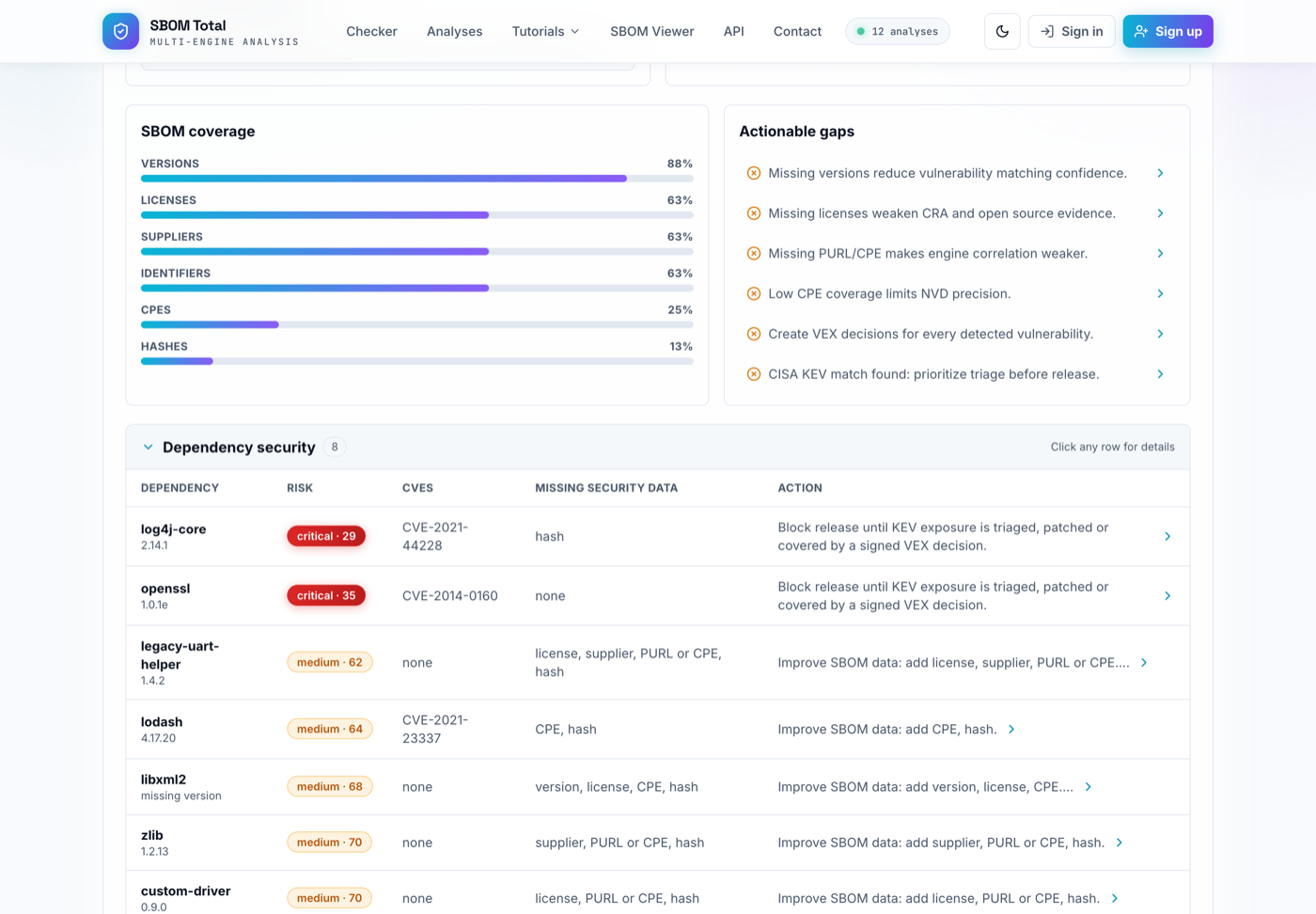
Dependency security (per component)
- What it means
- Each component scored 0-100 from its CVEs plus missing evidence (version, PURL or CPE, hash, license, supplier), sorted worst-first, each with a concrete action and the exact fields it is missing.
- How to fix it
- For high and critical rows, follow the Action. For missing-data rows, add the listed fields to the SBOM.
- Result after the fix
- Rows turn green (low risk) and the release blockers disappear.
Coverage gaps
- What it means
- A plain-language list of what is weakening the scan (missing versions, missing licenses, low CPE coverage, undecided findings). Click any gap for its impact and the exact fix.
- How to fix it
- Address them at the source, in how the SBOM is generated, rather than editing the file by hand.
- Result after the fix
- The gaps list shrinks to empty and the quality score and coverage bars rise with it.
NTIA minimum elements
- What it means
- The baseline an SBOM must carry to be useful: supplier, component name, version, unique identifier, dependency relationship, author, and timestamp. Anything missing is called out.
- How to fix it
- Add any element marked missing during SBOM generation.
- Result after the fix
- Full NTIA conformance, the floor for sharing an SBOM with customers or regulators.
VEX decisions
- What it means
- A per-CVE statement of exploitability (affected, not affected, fixed, or under investigation) with a justification. It turns a raw match into a defensible answer.
- How to fix it
- Open a finding, set a VEX status and note (sign in to save it to the scan), and export the set as VEX JSON.
- Result after the fix
- Auditors and customers can see exactly why each CVE does or does not matter for your product.
The fix-and-rescan loop
For the demo, the path to clean is concrete: upgrade log4j-core from 2.14.1 to 2.17.1 (clearing the known-exploited Log4Shell findings) and lodash from 4.17.20 to 4.17.21, add the missing suppliers, licenses and SHA-256 hashes during the build, and write a VEX note for the suppressed items. Re-scan and the score climbs, the maturity level rises, the gaps empty out, and the verdict turns from risk to clean.